
Video Resolution and Bitrate
Home / Forums / Mevo Camera / Video Resolution and Bitrate
- This topic has 0 replies, 1 voice, and was last updated 5 years, 1 month ago by
Nick.
-
AuthorPosts
-
There are two important settings you have that determine the video quality and internet bandwidth that your Mevo camera uses.
Resolution
The video resolution is the size of the picture in terms of the number of pixels used to represent it. The more pixels the picture has, the more detail it can contain. More detail is nice, but it doesn’t come for free. A higher resolution picture requires more data bits (or bandwidth) to record the video, so it is a trade-off.
The two most common high definition resolutions are:- 720p – the picture is 1280 pixels wide by 720 pixels high (so each picture contains just under 1 million pixels)
- 1080p – the picture is 1920 pixels wide by 1080 pixels high (so each picture contains just over 2 million pixels)
A 1080p picture has about twice the number of pixels of a 720p picture, si it takes roughly twice as much data to encode.
Both resolutions are high definition and most people won’t see the difference, so I recommend the following:
- If you are streaming or recording a video that will be uploaded then use 720p.
- The only time I recommend using 1080p is if you are recording a video that you intend to edit where you will be zooming in or adjusting the picture.
With the Mevo camera you can control the resolution for both streaming and recording.
Bitrate
Once you have the picture it has to be encoded to send the picture down the internet as data bits or store them on the SD card. The higher the bitrate (the more data bits per frame) the better the picture quality will be. A higher resolution picture will need a higher bitrate in order to look good.On the Mevo camera you can directly set the bitrate for recordings, but not for streaming. (You can still control the streaming bitrate by choosing the resolution).
For a 720p resolution picture a 2.5 Mbit/sec bitrate will give a reasonable video quality, and a rate of 1.5 Mbit/sec will give a low quality video. For a 1080p resolution picture bitrates of 4.5 Mbit/sec and 3 Mbit/sec respectively will give similar quality.
Setting the Mevo video recording resolution
The video recording settings are used to control the way in which video is recorded to the SD card. This does not affect the streaming behavior.Go to the configuration menu by pressing the 3 dots in the lower right, then press on the cog in the lower right. This will open the settings configuration menu, then you can scroll down to the ‘Audio & Video’ settings:
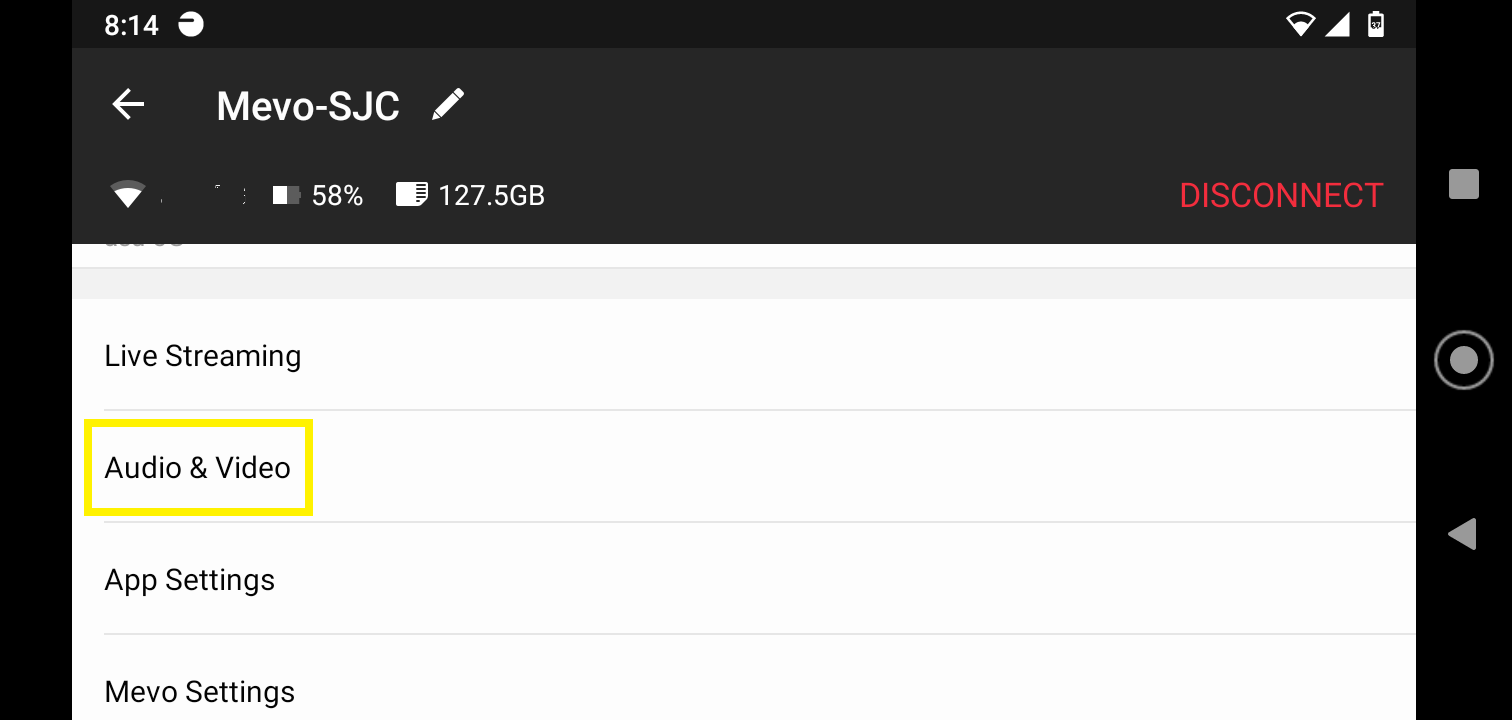
Adjust the settings to:
- Frame Rate = 30
- Recording Format = File: MP4, Video: H.264, Audio: AAC
- Recording Resolution = 720p
- Recording bitrate = 2.4 Mbps
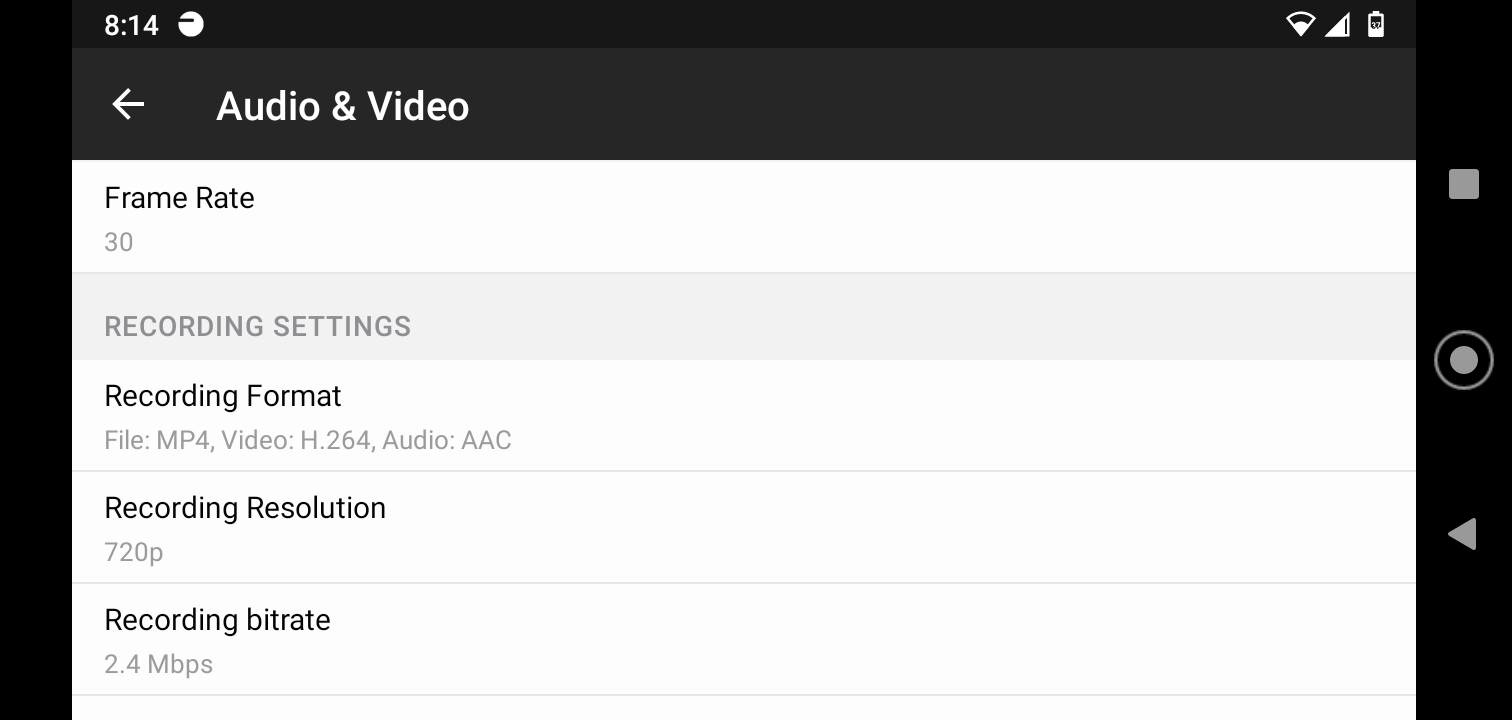
As discussed earlier, if you plan to edit the recording then you may want to set the resolution to 1080p and the bitrate to 4.5 Mbps.
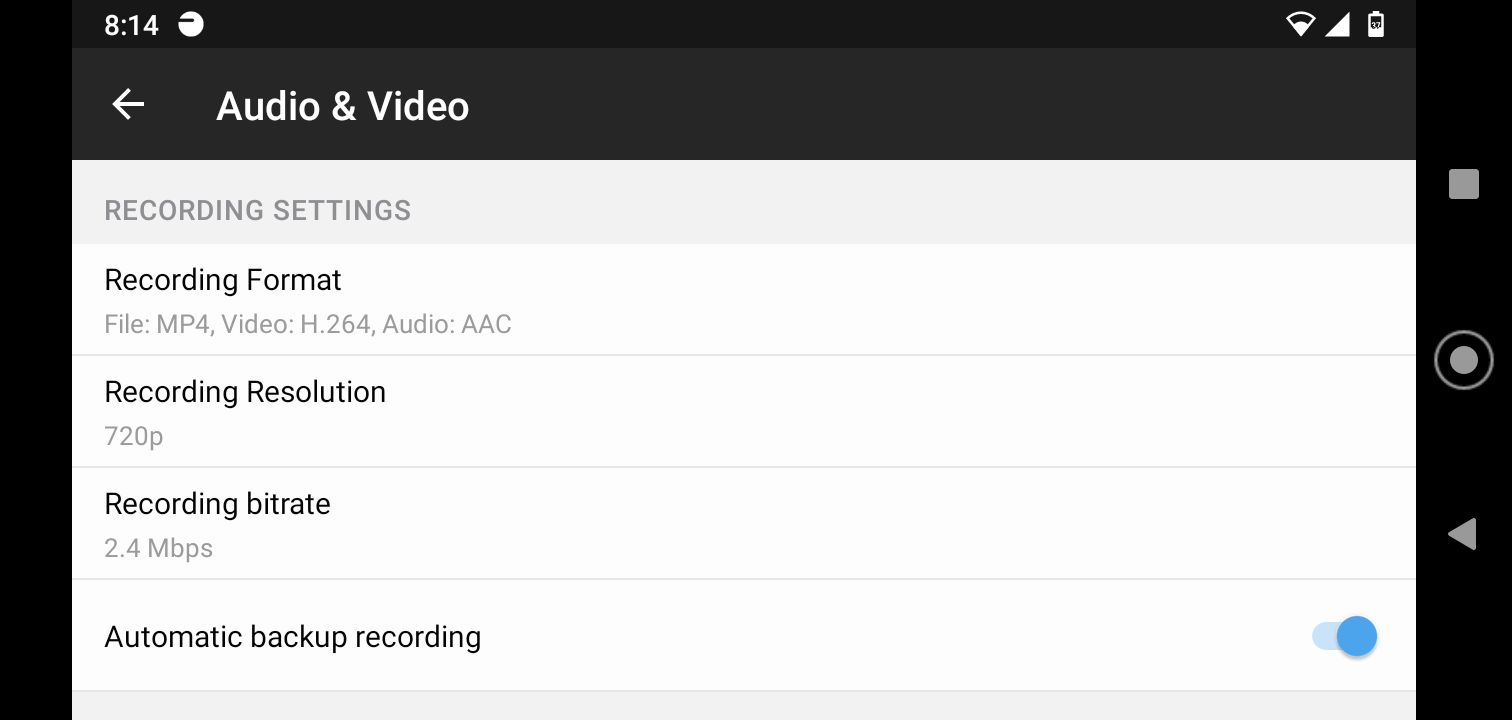
The Mevo camera can make automatic backup recordings while you are streaming. I recommend that you enable this so that you have a backup in case you lose internet connection during streaming. This way you can upload the backup later if the stream was interrupted.
Setting the Mevo video streaming resolution
When you got to the recording screen by pressing the red button on the lower left of the screen, you can select the streaming service that you will be using. At that point the video resolution will be displayed in the top left of the screen. By default it will be 1080p. By pressing on that number it will open a selection list where you can choose the resolution that you want to use for streaming. Pick 720p:
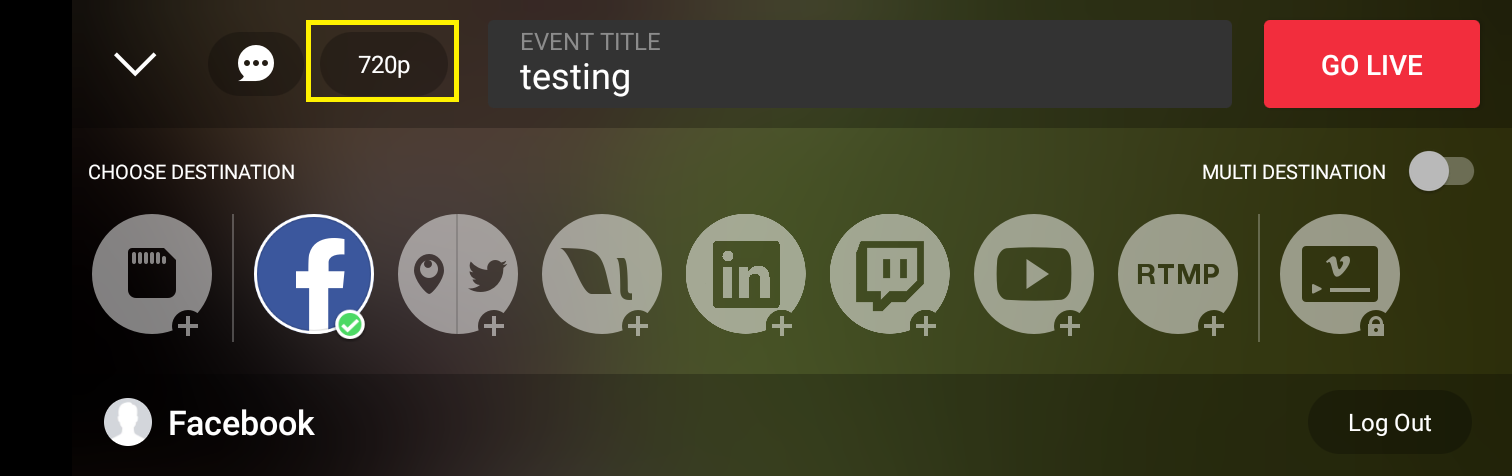
You cannot set the streaming bitrate, but you can see it during streaming. When you are streaming click on the headshot on the right side of the button on the lower left of the screen:

This will open the button up to display the streaming and recording status:
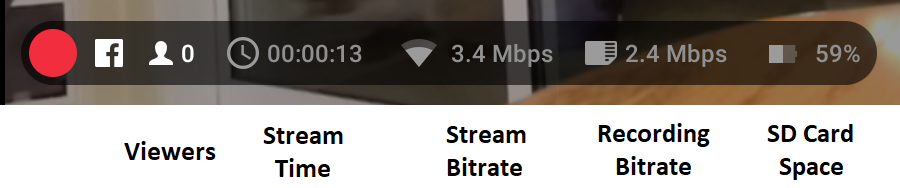
You can choose which statistic is displayed when the button shrinks by clicking on that statistic in the full button.
-
AuthorPosts

- You must be logged in to reply to this topic.