
Mevo for ZOOM
Home / Forums / Mevo Camera / Mevo for ZOOM
- This topic has 1 reply, 2 voices, and was last updated 5 years, 1 month ago by
Nick.
-
AuthorPosts
-
Sorry I accidentally sent my question as an email question vs this post, but I am trying to use the MEVO camera for ZOOM but the tablet and the laptops I have tried (2 different ones) do not give the option of selecting a different camera source. Is there a way to make this work?? Thank you~
Hi, I was able to successfully use the Mevo as a Zoom Webcam by following the steps below. It is worth noting that the webcam feature is still Beta in the Mevo firmware I am using (2.3.14B) so things may change in future, hopefully for the better. I was using a PC running Windows 10 for Zoom and an Android cellphone for the Mevo control app.
1. Switch on the Mevo camera and open the Mevo app on the device (tablet or mobile phone) that you want to use to control the camera.
2. Connect the Mevo camera to your PC using the USB cable that came with the camera. Other USB cables may work too, but just to eliminate that as a potential issue lets use the original one.
3. Using the Mevo app go to the settings menu (click on the 3 dots on the lower right side of the screen) and then click on the cog symbol in the lower right. Scroll down the menu options until you get to ‘Wired Webcam Mode (Beta)’ as shown below:
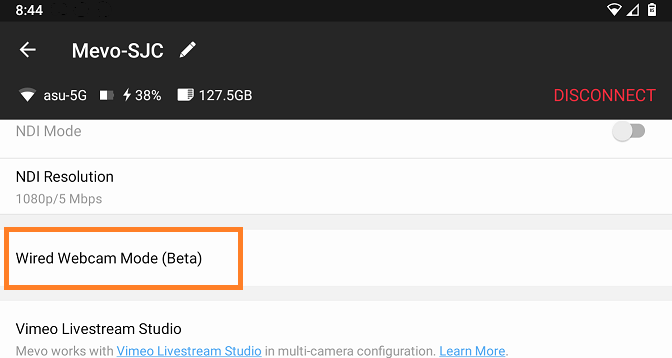
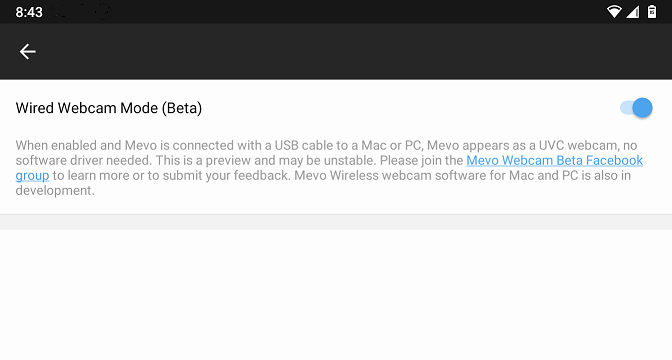
4. Click on ‘Wired Webcam Mode’ and then on the next screen click on the switch on the right to enable this mode, as shown in the picture below:
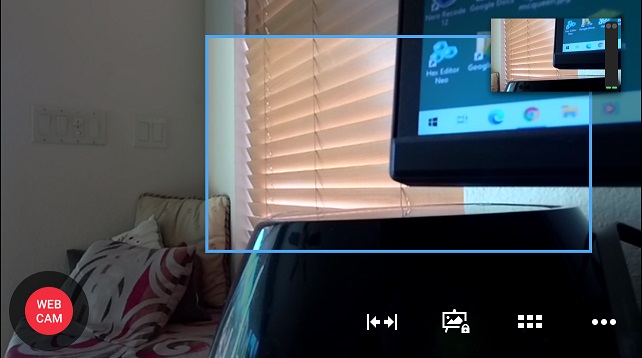
5. When you return to the main screen of the Mevo app the recording button in the lower left should say WEB CAM as shown below:
6. In Webcam mode you can still use the controlling tablet / phone to pan and zoom the camera, and make camera adjustments such as lighting. It does appear that in Webcam mode you are not able to record or stream from the camera, and the microphone also appears to be muted.
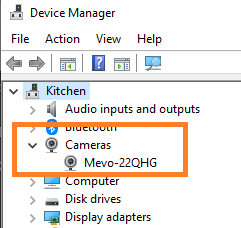
7. On the PC there should have been some activity. If this is the first time that the camera was connected then you should see a couple of notifications that the camera PC drivers are being installed. This takes a minute or so. You can check that the PC has successfully recognized the camera and installed the drivers by opening Windows Device Manager (Right click on the Windows 10 Start logo in the lower left of the screen, then select Device Manager from the popup menu). If the camera has been recognized it should appear in Device Manager under Cameras:
8. Open you Zoom application on the PC and enter or start a meeting. On the lower left edge of the Zoom window click on the up arrow on the right of the camera icon, and select the Mevo camera as the video source by clicking on it so that a check mark appears next to it:
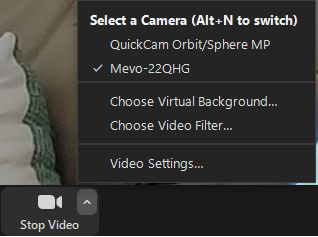
9. If the zoom camera is disabled (has a red diagonal line through it) you can enable it by clicking on the camera icon.
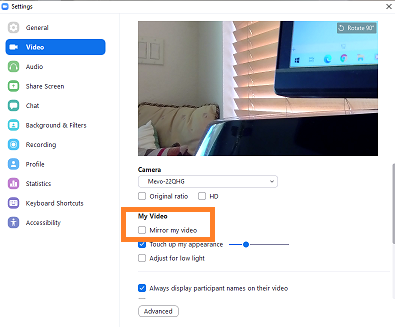
10. You can adjust how zoom uses the webcam picture, such as mirroring the image, by clicking on the ‘Video Settings…’ line of the Camera menu, and then make the settings change as shown below:
Notes:
- The current Mevo firmware does not appear to provide sound so you will need to choose a different microphone for Zoom.
- Pan and Tilt and camera settings for the Mevo camera in Webcam mode are still controlled from the tablet/mobile phone rather than from Zoom.
Please try these steps and let me know at what point your results diverge.
-
AuthorPosts


- You must be logged in to reply to this topic.