Installation Resources
This page describes the equipment provided to the 17 rural congregations so that they can live stream their worship services. This kit is based on the Mevo Start camera which enables live streaming using the camera controlled by a mobile phone or tablet.
What can the Mevo Start camera do?
The Mevo Start is a good short to middle distance camera with built in streaming capabilities. Out of the box, the Mevo Start camera can form part of a live stream setup that can record and/or live stream.
Live Streaming Kit
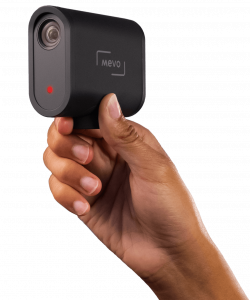
The following items are part of the live streaming kit that the UTO grant helped provide for each rural congregation:
The Mevo Start camera is the base of the kit. It is able to live stream to sites including Facebook and YouTube, as well as being able to record to a microSD card. All of the live streaming hardware is included in the camera so that all you need to do is provide an internet connection (through WiFi or a cellular hotspot) and a controller which can be a cellphone or a tablet.
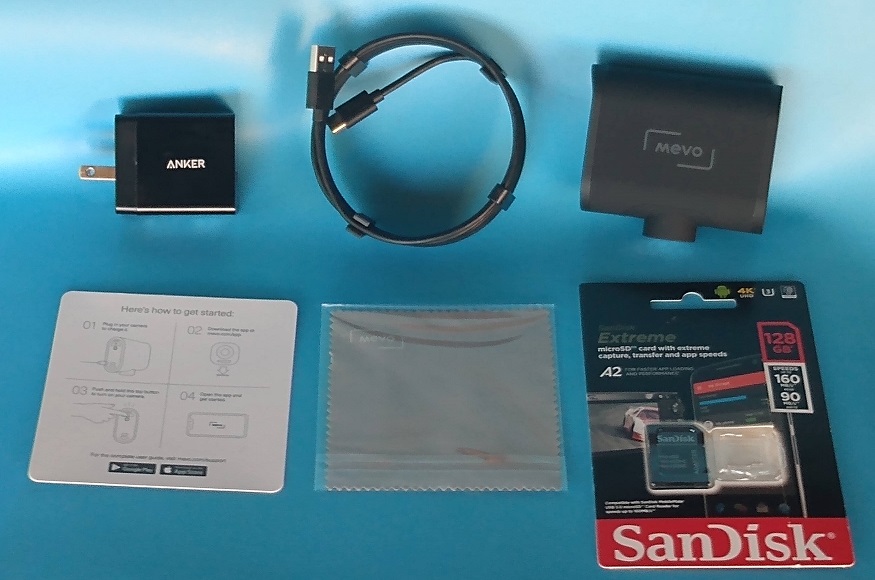
The Mevo Start camera kit does not include a charger or microSD card so we have added these. For fastest charging the charger should support QC (Quick Charge) 2.0. The microSD card can be used to make recordings when and where you don’t have internet connectivity, as well as making recordings to show later. Even if you always plan to live stream, the microSD card enables you to create a backup recording so that you have a copy of the video if the internet connection is lost. (The microSD card is missing from the packaging because it is already inserted in the camera!)
The 128 GB microSD card can record up to approximately 76 hours of backup recording video at 720P resolution. Higher resolution or quality recordings will consume more storage. See here for more information.
You can find these items on Amazon at:
We have two options for the camera stand, depending on if portability is desired.
Mevo Floor Stand
The Mevo Floor Stand is a lightweight portable tripod stand with a swivel mount head to mount the the Mevo Start camera at any angle. It comes with a storage / carrying bag:
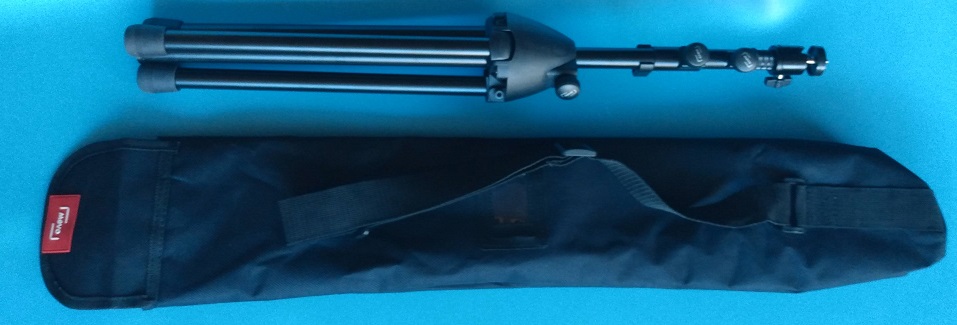
This is available from Amazon at: Mevo Floor Stand
Microphone Stand
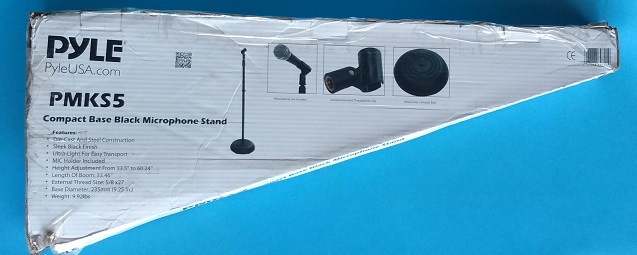
While the lightweight Mevo floor stand is very portable, the tripod does extend away from the base. For locations that do not need the portability of the Mevo floor stand we recommend a universal microphone stand with a heavy compact base. This enables the camera to be placed to the side of aisle without the risk of tripping. There are a number of suppliers for this type of stand, such as the Pyle PMKS5:
In order to be able to adjust the angle of the camera we recommend using a ball head swivel mount and an adapter from the microphone stand to the camera standard 1/4″ thread. This shows the combined swivel ball head mount and the thread adapter:
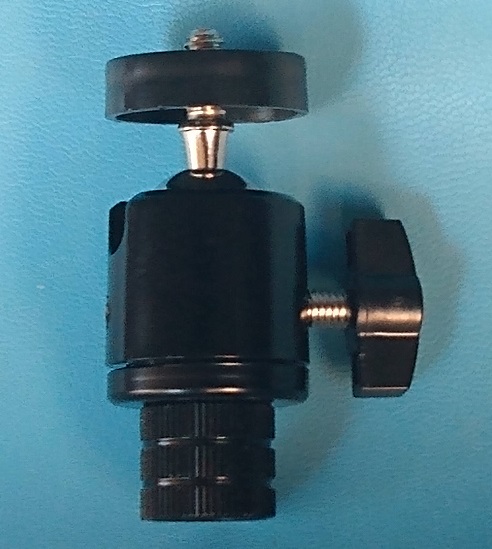
WARNING: This is intended for light loads (like a Mevo camera). The bolt on the side does not need to be tightened hard. If it is there is a good chance you will break it.
These items are available from Amazon at:
The Mevo Start camera includes good microphones. However due to the distance from the camera to the subject, and the room conditions, this may result in a muffled voice or excessive echo. Mevo offers three ways to alleviate these issues:
- If the device (cellphone or tablet) controlling the Mevo Start camera is close to the speaker then you can plug a microphone into the controlling device and use it as a supplemental or alternative audio source to the Mevo Start camera microphones.
- If the speaker is not near the device (cellphone or tablet) controlling the Mevo Start camera then you can use the speaker’s cellphone or tablet and connect to the Mevo Camera using the free Mevo Mic app. The external microphone then plugs into the speaker’s cellphone or tablet.
- If you have a soundboard you can connect the output directly to the Mevo Start through the 3.5mm jack at the back of the camera, or you can connect it to the Mevo camera as a microphone using either of the previous methods.
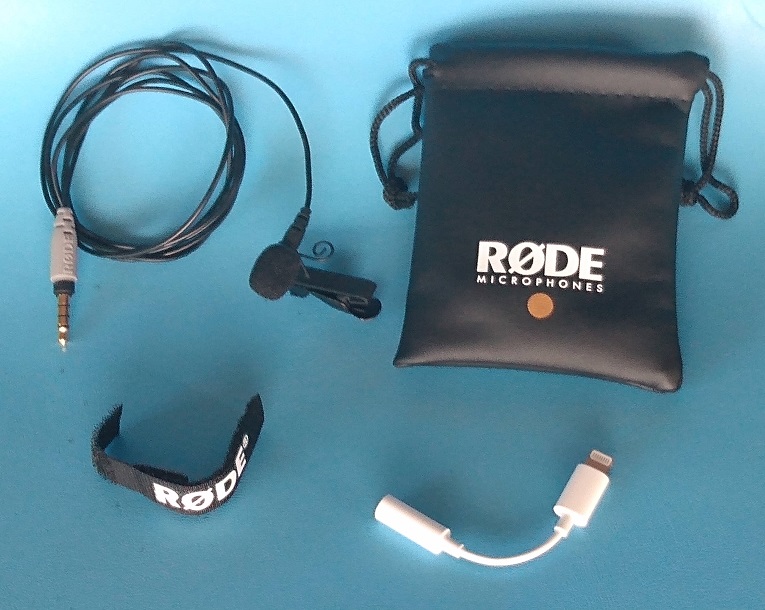
The kit includes a Rode SmartLav+ microphone which can be clipped to the speakers clothing to provide a high quality audio pickup. This microphone has a TRRS plug that can plug into any device that supports a combined headphone/microphone. Most cellphones (that have a 3.5mm jack) support this.
Apple stopped including a 3.5mm jack on their phones since the iPhone 7. If you want to connect the SmartLav+ microphone to an iPhone you will need an Apple Lightning to 3.5mm Headphone Jack Adapter.
These items are available from Amazon at:
- Rode SmartLav+ Microphone
- Apple Lightning to 3.5mm Headphone Jack Adapter – due to the many comments about counterfeit products on Amazon I recommend purchasing this from the Apple store , a national store such as Best Buy or some other trusted source.
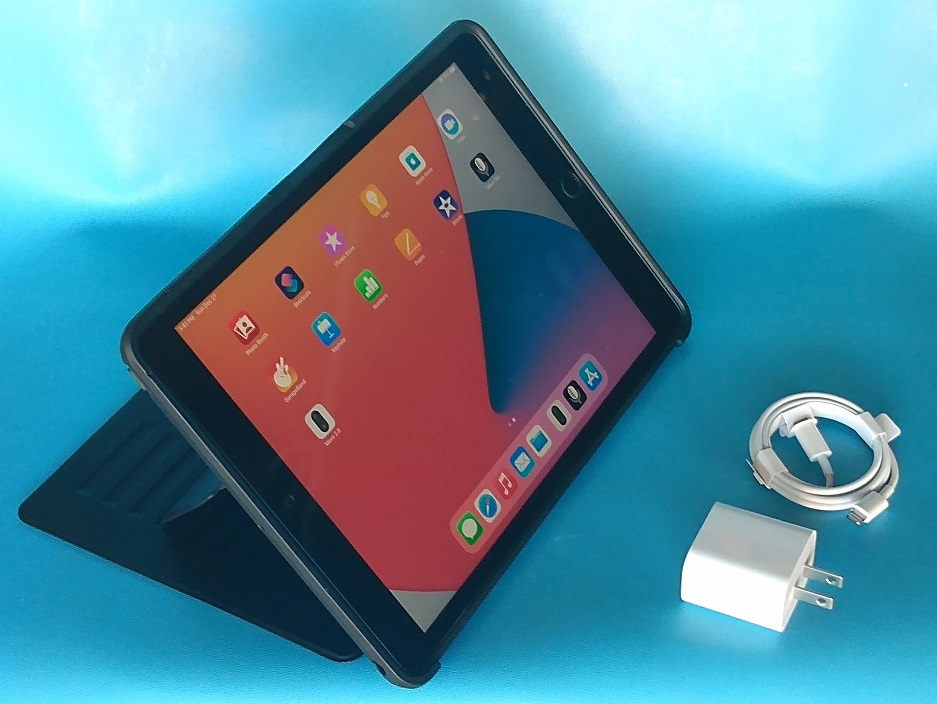
The kit includes a tablet that can be used to control the Mevo Start camera, but can also be used for other purposes such as communicating with isolated congregational members. A number of applications are available for this including Zoom. Facetime is a familiar favorite for many Apple users so we have recommended congregations consider an Apple iPad.
The iPad comes with the charger and cord, but we added a screen protector and a case that will cover the screen when it is not being used and cushion any falls.
These items are available from Amazon at:
Congregations wanting an Android tablet will receive a Samsung Galaxy Tab A7 10.4 inch 32GB Wi-Fi (SM-T500) device.
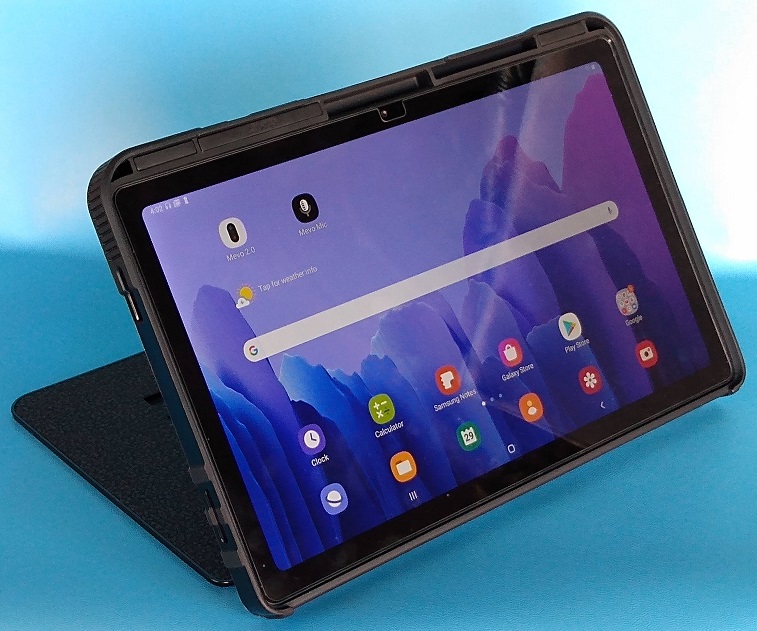
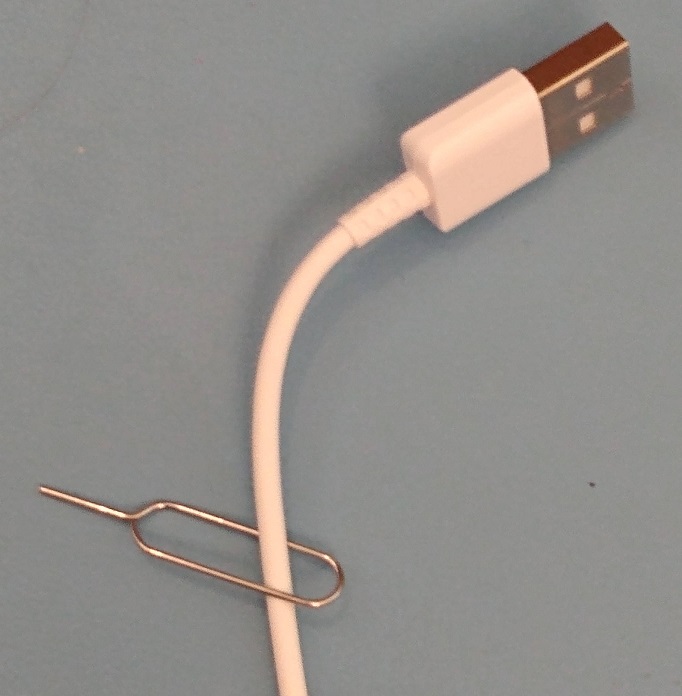
The Galaxy Tab A7 comes with a reset clip (in case you don’t own a paper clip). I have threaded the clip down the USB cable to prevent it from getting lost. If you want to keep it then please store it somewhere, otherwise if you already have a paper clip you can dispose of it.
These items are available from Amazon at:
- Samsung Galaxy Tab A7 10.4″ 32GB WiFi (SMT500NZAAG)
- Ztotop Case for Samsung Galaxy Tab A7 10.4 Inch Tablet 2020 (SM-T500/505/507)
The Samsung tablets come with regular chargers, The charger that is supplied for the Mevo camera can also charge your tablet, and it will charge faster than the Samsung charger !
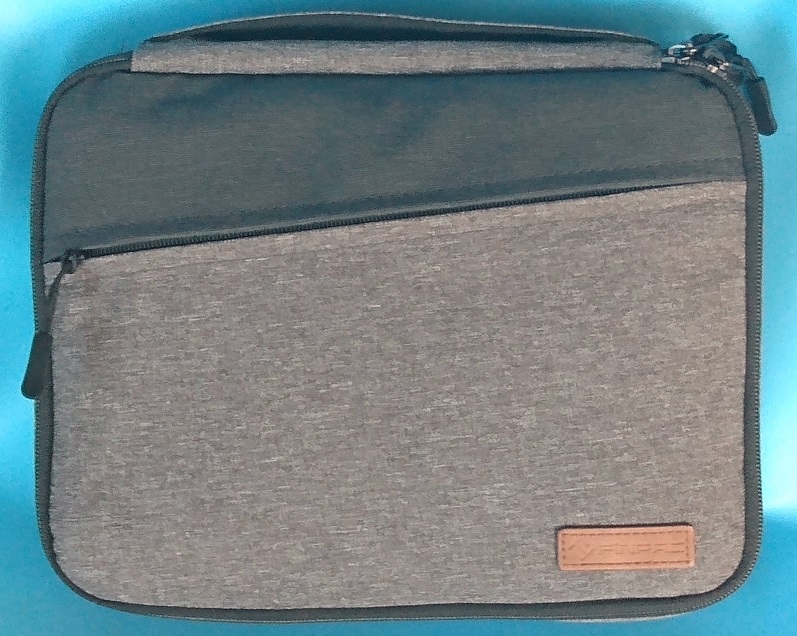
We use a storage bag to keep everything (except the stand) together and protected. Thios bag has enough space for all of the parts and is small enough that the items done move around too much.
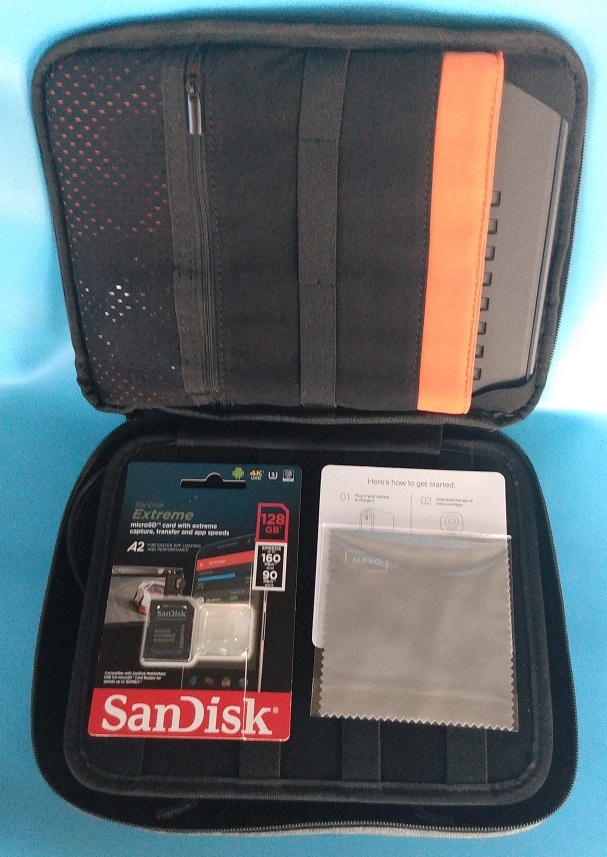
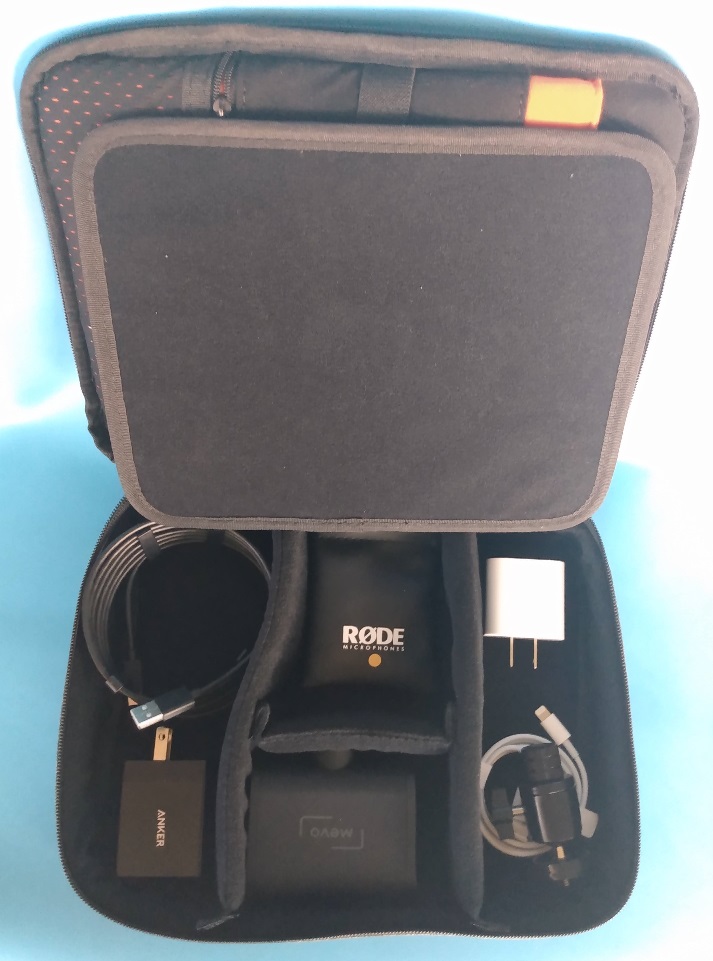
The tablet can fit inside the sleeve in the lid or lie in the top half of the bag, while the adjustable dividers in the bottom half can create sections for the different items. The Apple Lightning to 3.5mm Headphone Jack Adapter is stored in the zipped pocket in the lid of the bag.
The microSD is already installed in the camera but the packaging is included in the kit so that the microSD card adapter does not get lost (you can store the adapter elsewhere in case you ever need to access the microSD card from a PC with an SD card slot, and then discard the packaging).
The bag can be found on Amazon at: FINPAC Electronic Organizer Bag
We are still investigating if a light kit is required to improve the quality of the video. We are testing this ring light and if it proves useful we will add it to the streaming kit.
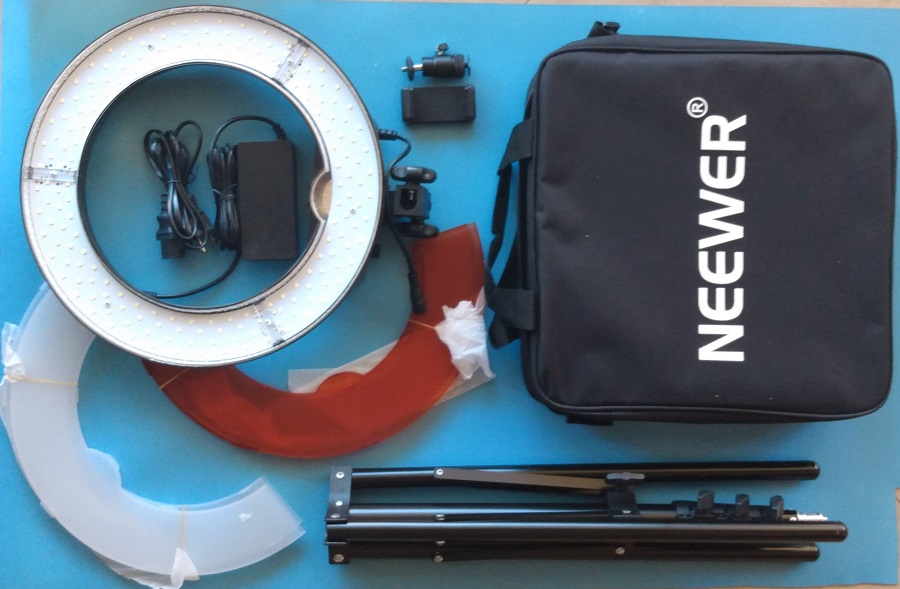
This is available from Amazon at: Neewer RL-12 LED Ring Light
Streaming Preparations
In order to be able to download the Mevo app from the Apple Store or Android Play Store. You will need to set up an account on the tablet.
- If you plan to be the only user of the tablet you can reuse an account of your own.
- If your church already has a shared Apple / Android account then that works better if you plan to let other people use the tablet too (and don’t want to expose your own data).
- If you plan to share the use of the tablet and you don’t already have an account that you can share then you can setup a new account.
The third option is probably the most likely. We already had a shared PC account for our church projection system so we used the same email account to set up the Google account for our android tablet. This way everyone on the projection team will know the tablet password.
If your church already has social media accounts on YouTube and/or Facebook then I suggest that you use those rather than creating new accounts.
Please be aware that both Facebook and YouTube have preconditions before you can live stream. For instance:
- Facebook requires newer accounts to have about 15 followers before you can live stream.
- YouTube requires you register a phone number with the account before you can live stream, and then there is a 24 hour waiting period before the first stream.
You can test the accounts that plan to use by trying to livestream from your computer if you have a webcam.
- For Facebook go to your Facebook home page and on the right side below your bio, select ‘Live Video’. Use a webcam as the source and enable ‘Unpublish after live video ends’. You can also prevent other people from seeing it by selecting ‘Only me’ on the left side under the Post settings.
- For YouTube go to your YouTube home page on your PC or tablet (Mobile live streaming requirements are much stricter). In the upper right corner click on the icon of the camera with a ‘+’ in it and select Go Live and you can try setting up a test stream.
We recommend streaming using a 720P resolution signal because this is a good compromise between bandwidth requirements and picture quality. This will require an upstream (data going from the camera to the internet) bandwidth of about 2.5 Mbps. Having an available bandwidth of 5 Mbps should ensure uninterrupted streaming (assuming no other issues).
You can use fast.com to test your internet bandwidth from phones, tablets and PCs. When it first runs it may only report the download speed. If so then you need to press the ‘Show more info’ button to get the upload speed:
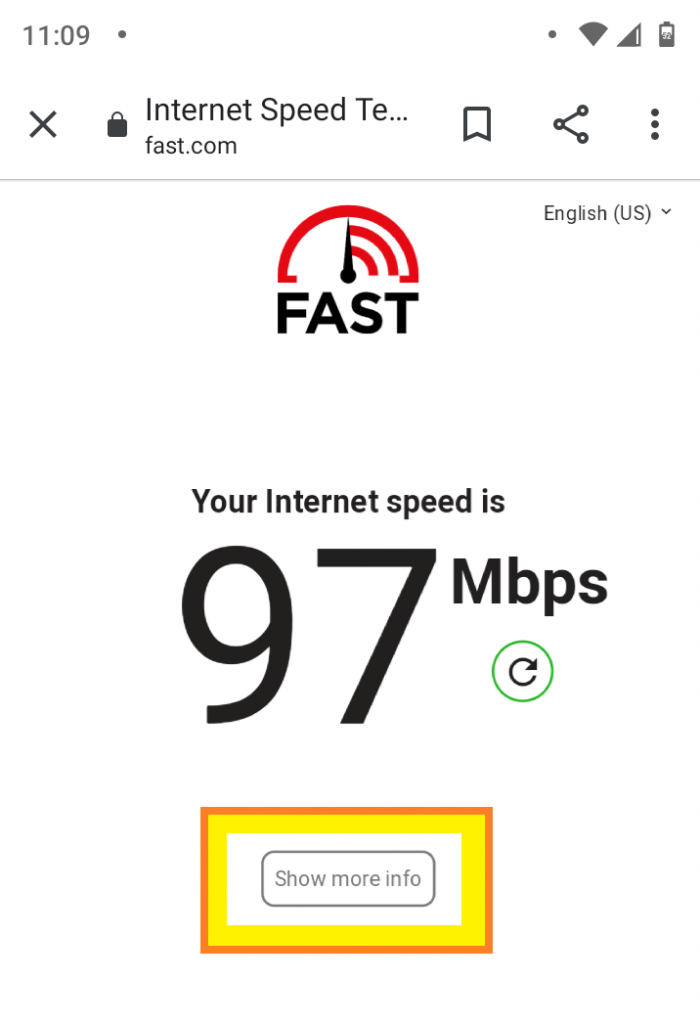
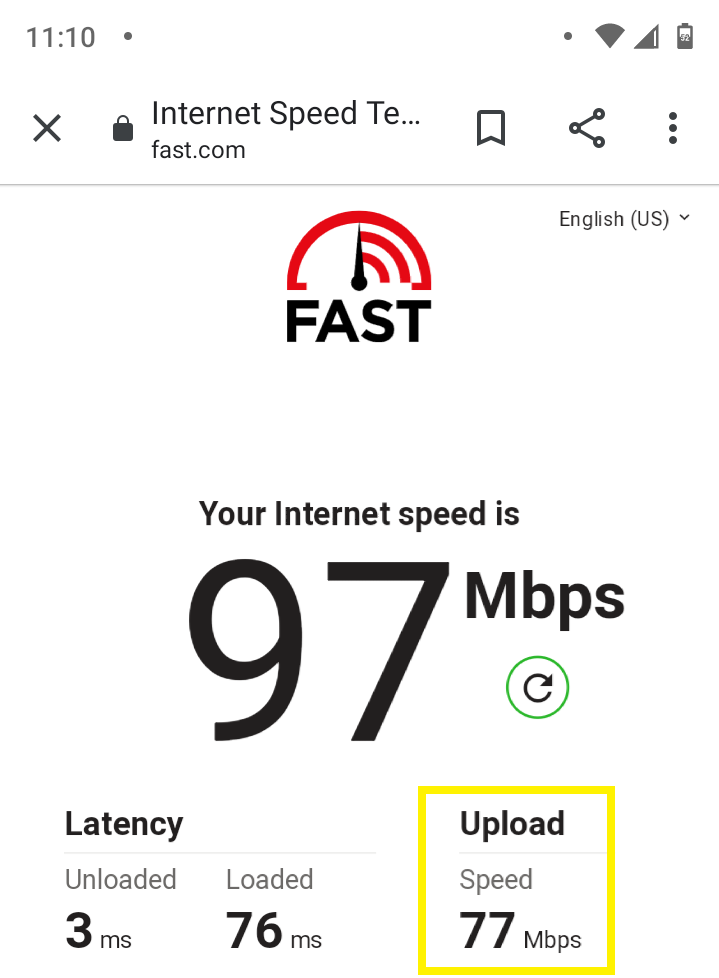
This shows two screenshots from a cellphone with measurements taken while connected to WiFi. The upstream speed is 77 Mbps so there should have no problem streaming over WiFi. When switching to using LTE cellular data the upstream bandwidth dropped to 10 Mbps, which is lower but should still be good enough. It is a good idea to run this bandwidth check multiple times around the intended service time to make sure that the available upstream bandwidth is consistent and reliable.
Training Materials
This section provides links to materials that you may find helpful when learning how to use your Mevo Start camera for live streaming.
Issues, Tips and Tricks
Unfortunately, as with all technology, there are sometimes problems. This section provides some resources that may help you address the issue. If you have an issue or find a solution that other churches may find helpful please post it in the forums.
The Mevo website has a support page for the camera and for streaming. These are great places to start.
Here are some useful tips: